PIXELS — TikTok Pixel (Page 2 of 3)
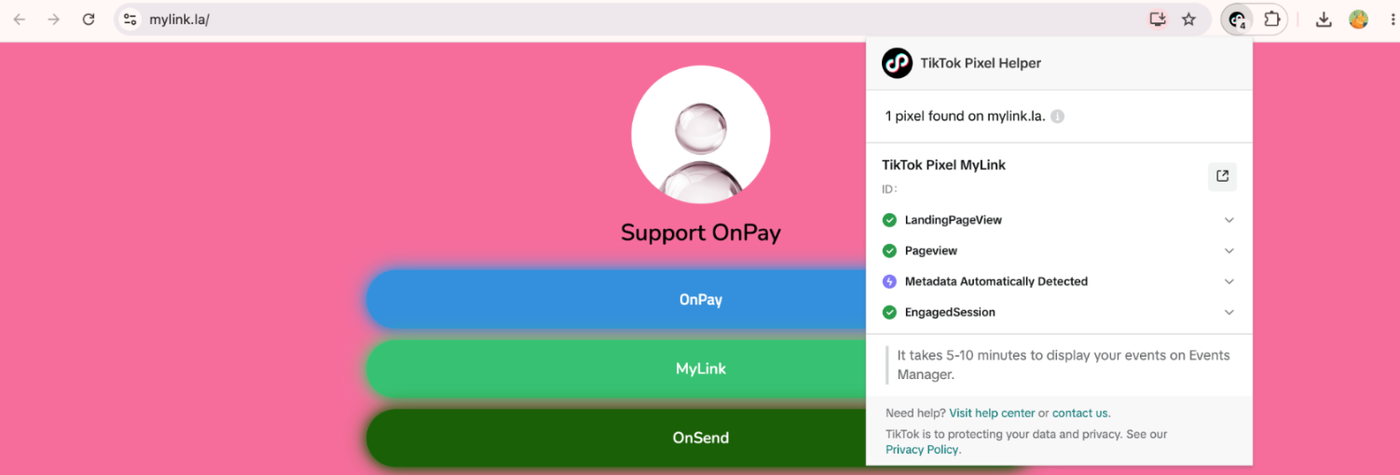
Set Up TikTok Pixel
Track visitor activity on your MyLink page by integrating TikTok Pixel. Follow these steps to activate it in MyLink and connect it to your TikTok Ads account.
Requires: You need to be subscribed to the Pro or Premium package before setting up TikTok Pixel.
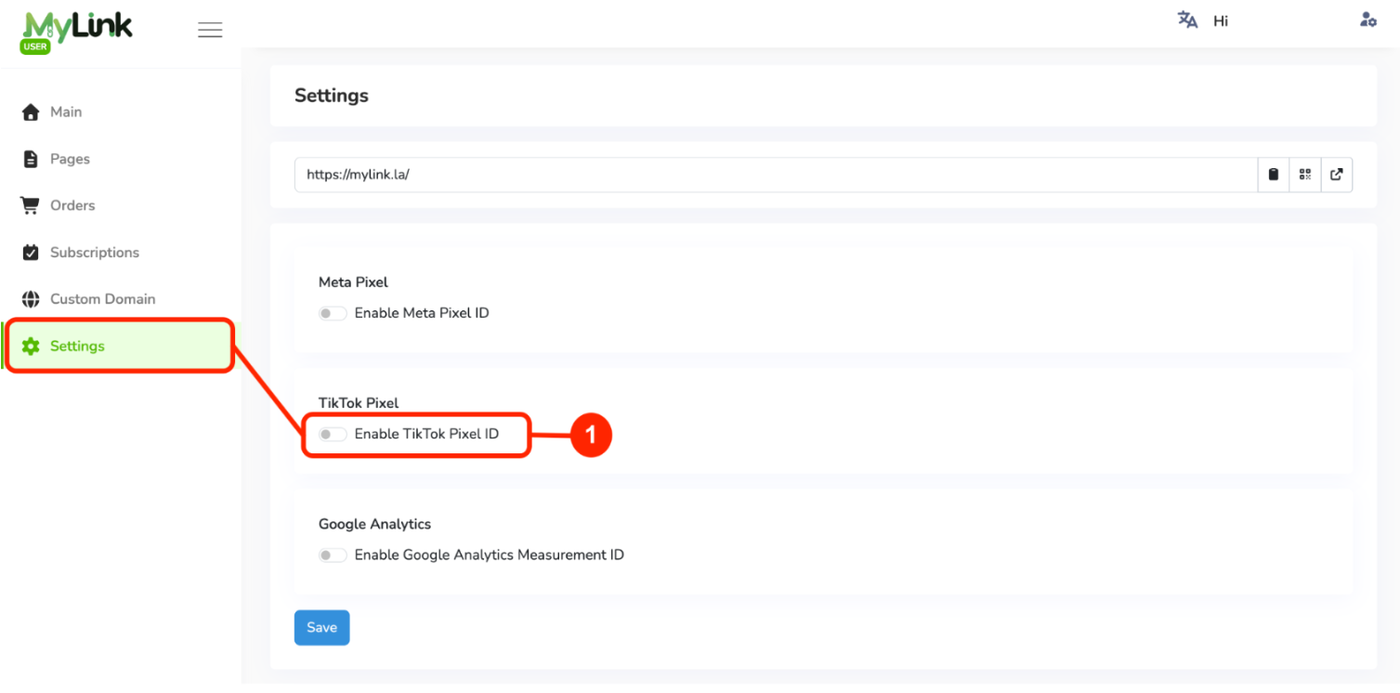
In MyLink, go to Settings and enable TikTok Pixel.
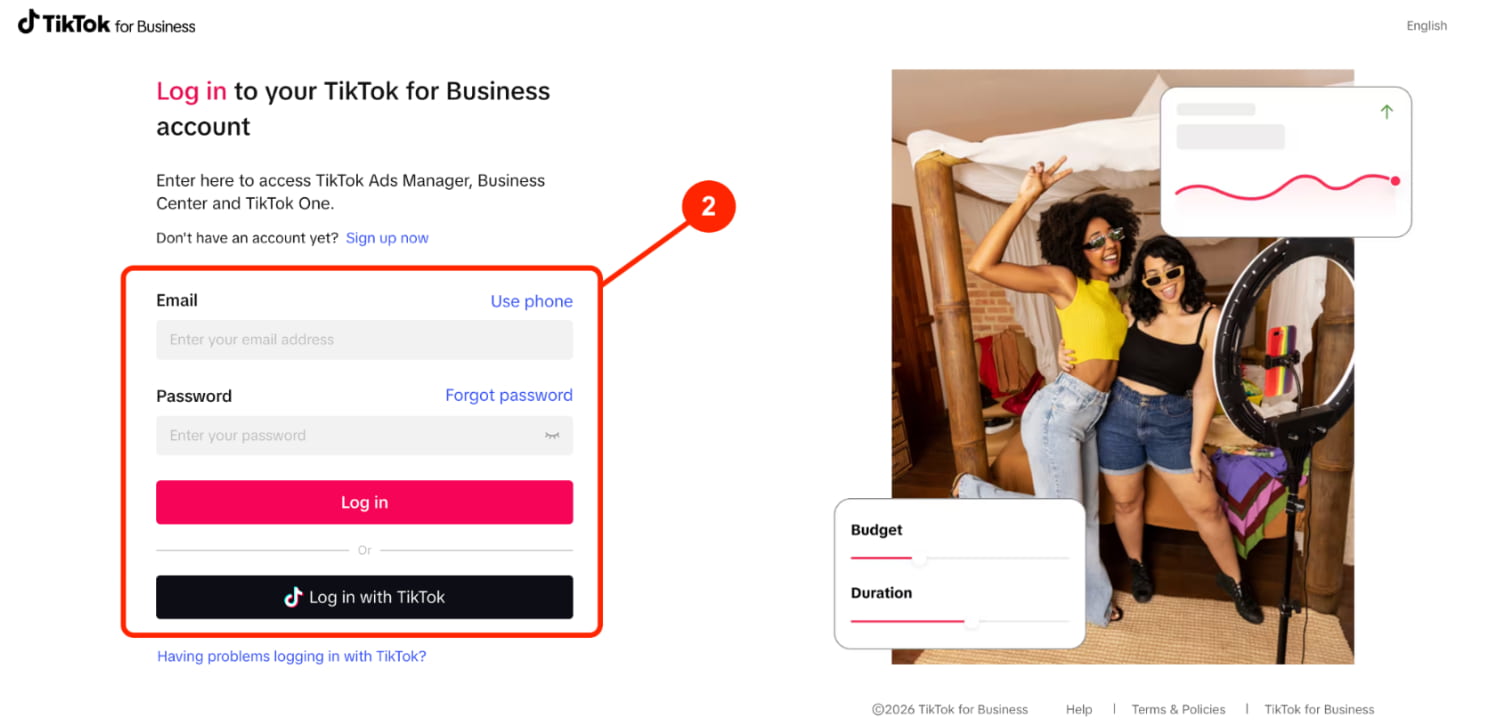
Log in to TikTok Ads Manager using your TikTok Ads account.
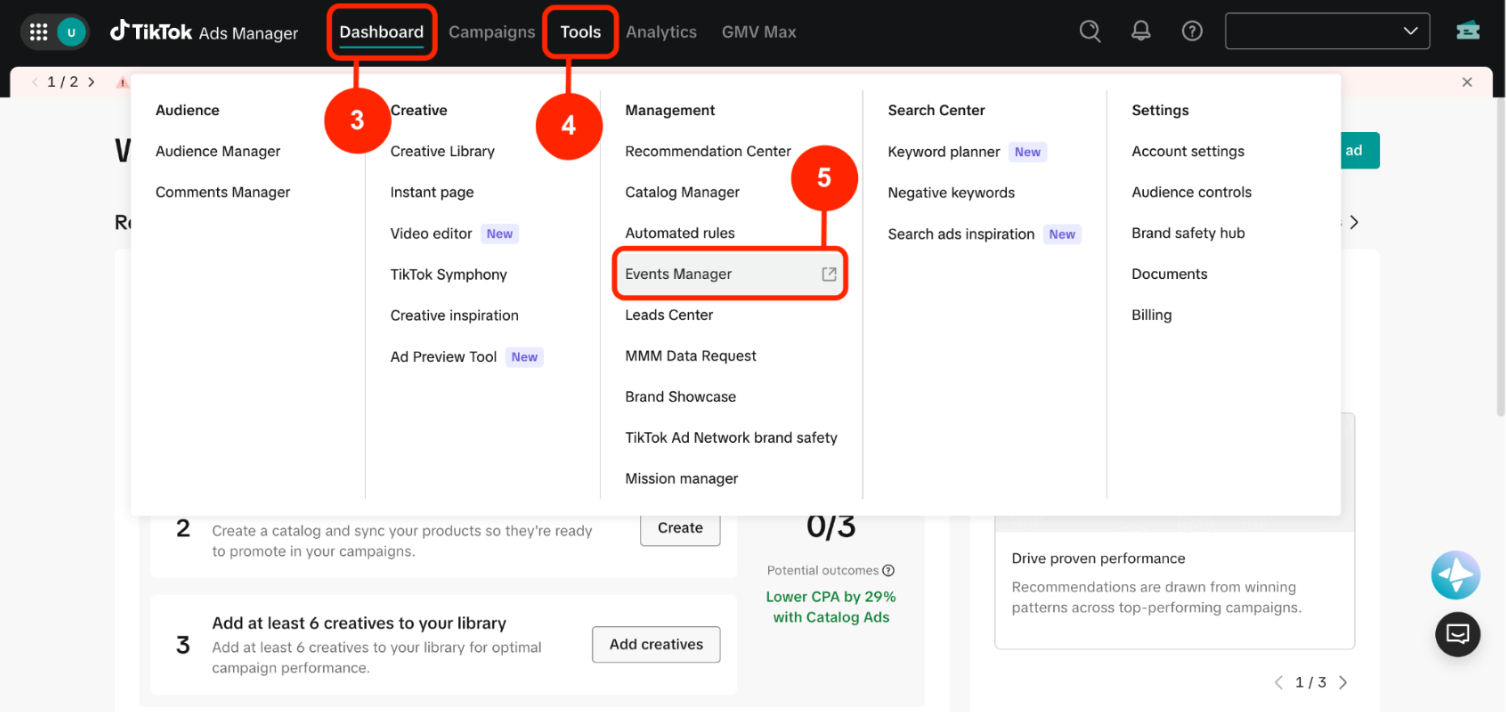
In TikTok Ads Manager, click Assets.
Select Events Manager.
Click Connect data source.
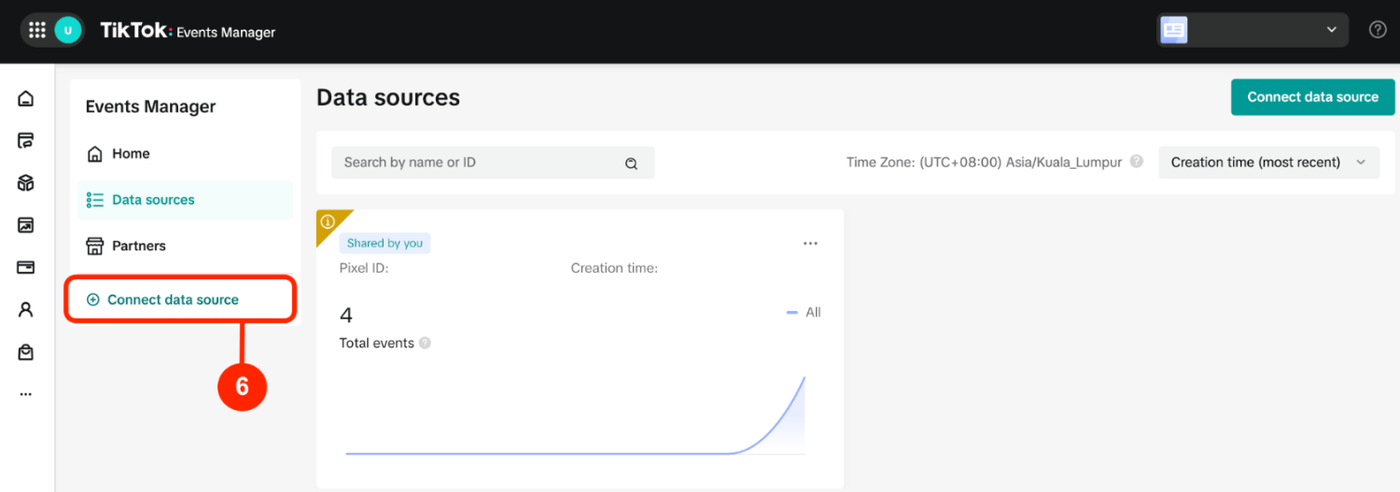
Choose Web, then click Next.
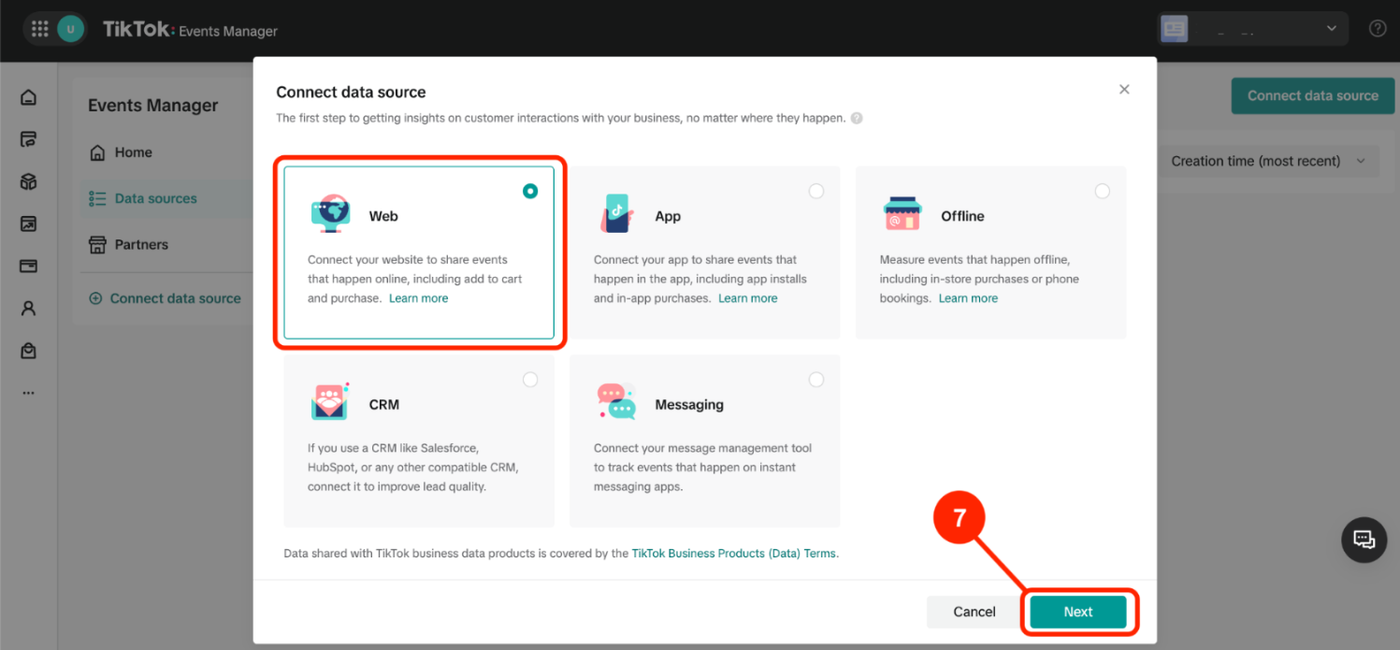
Copy and paste your MyLink URL into the provided field.
Then click Next.
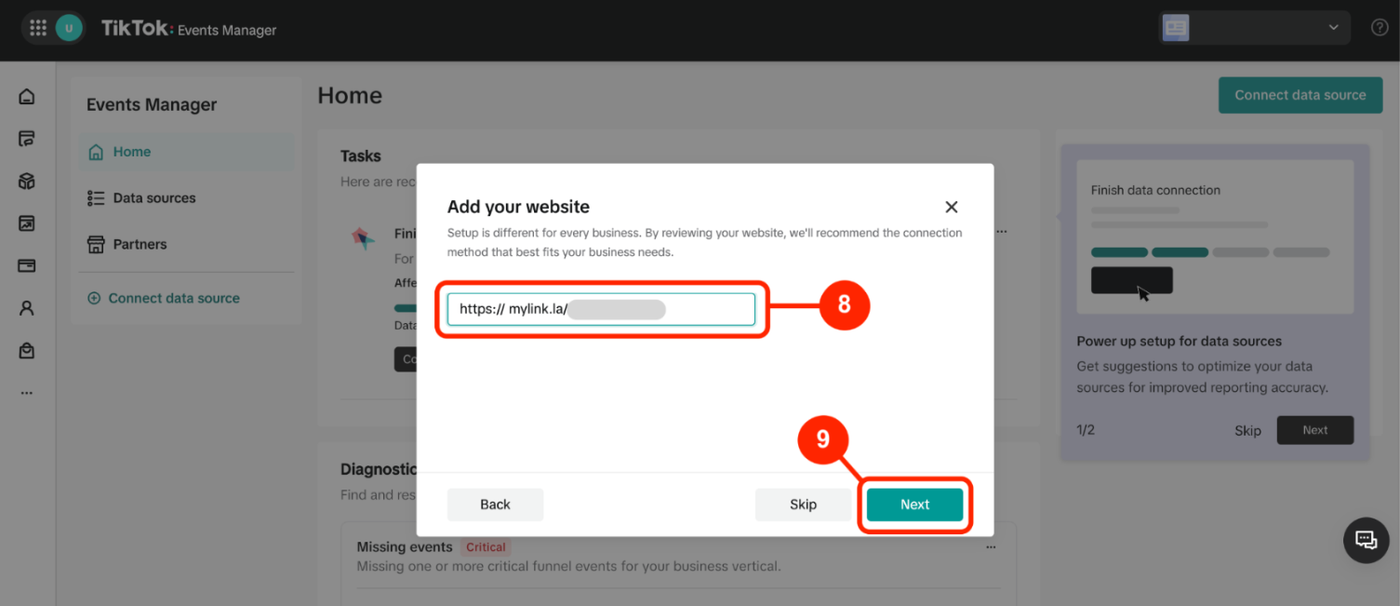
Choose Manual Setup, then click Next.
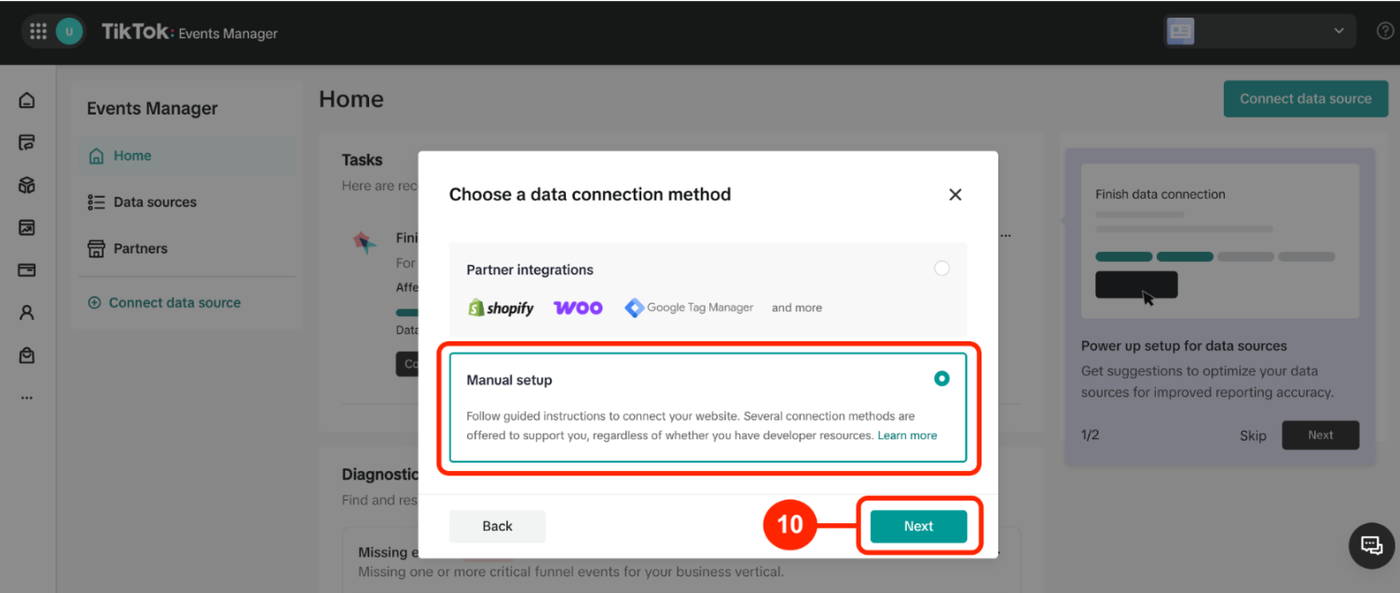
Choose Manual Connection Method, then click Next.
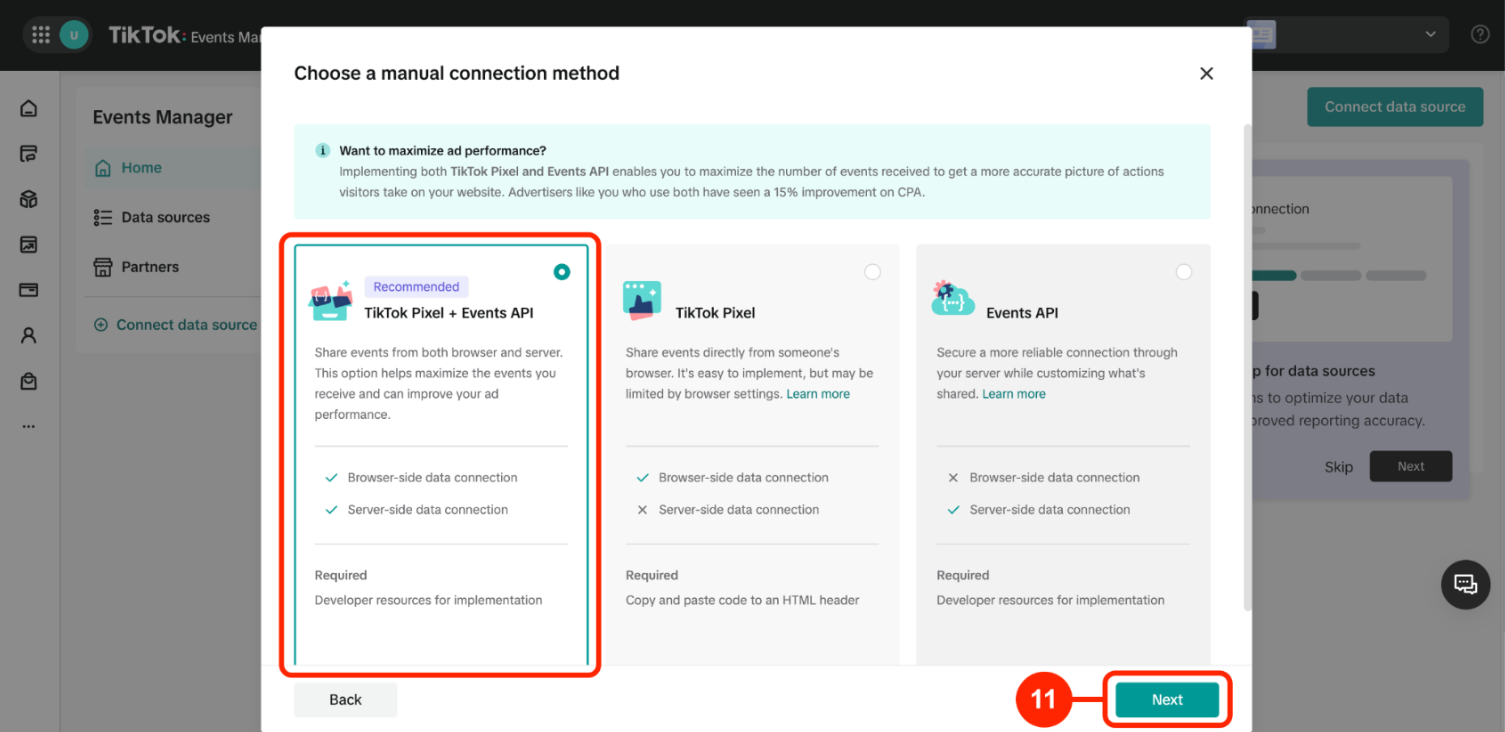
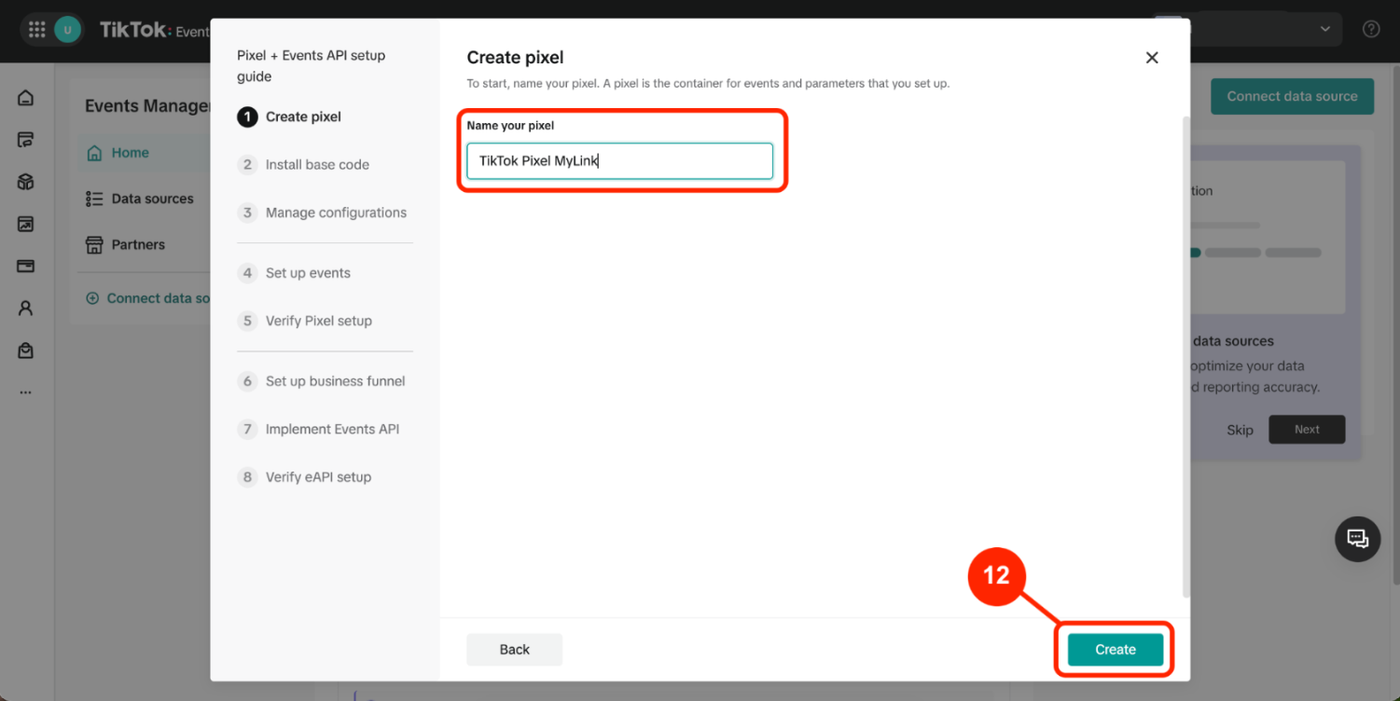
Enter your preferred Pixel Name, then click Create.
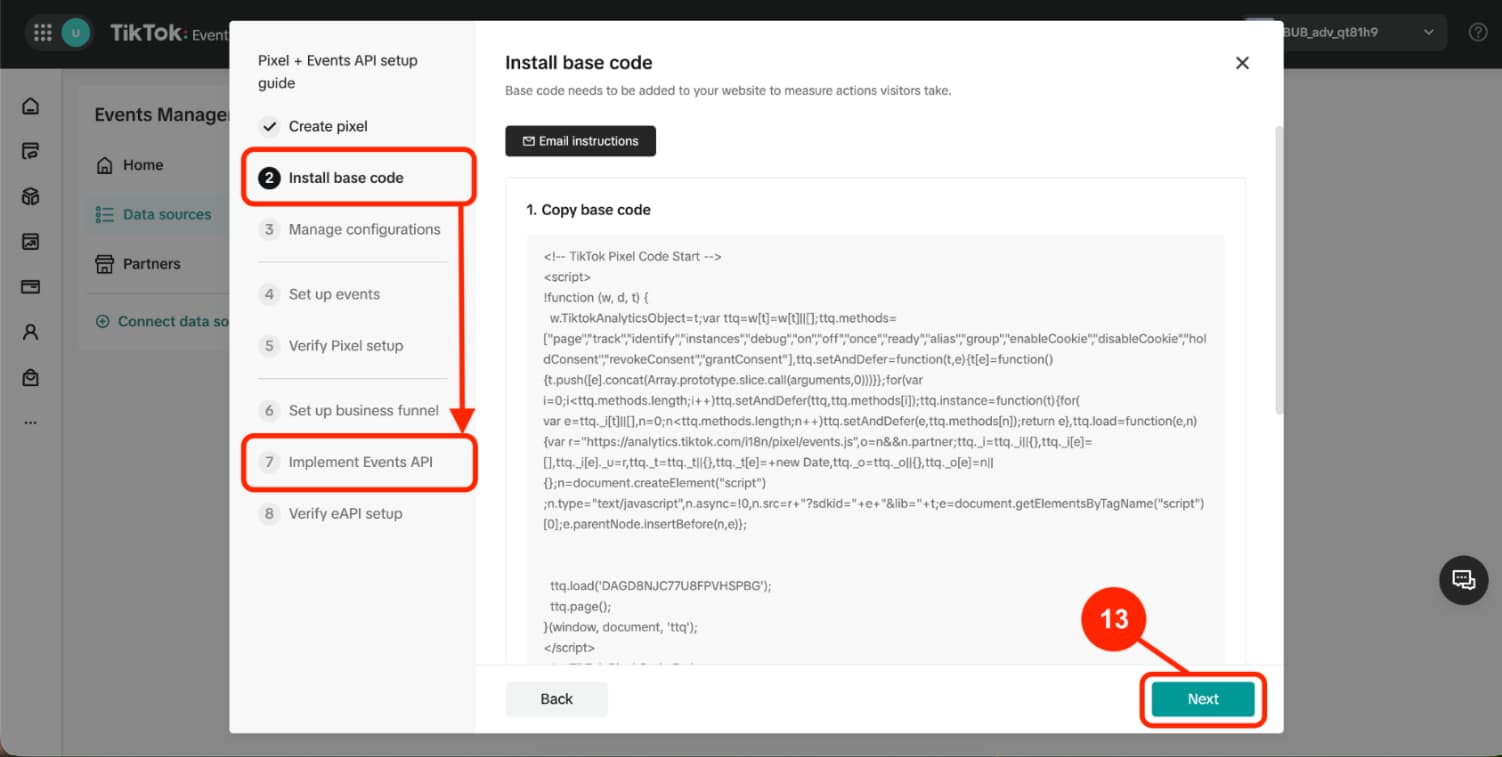
Click Next to proceed through the setup until you reach Step 7.
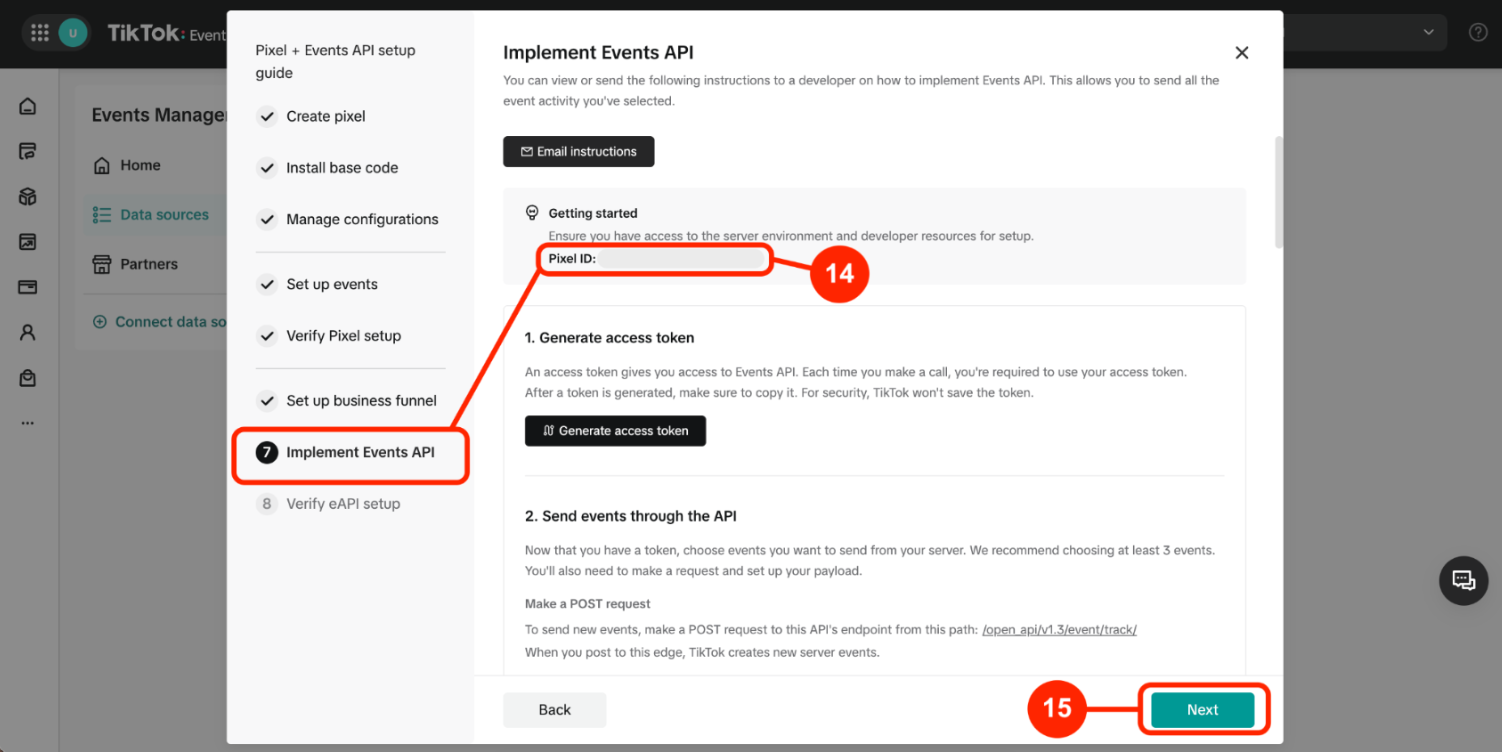
At Step 7, copy your Pixel ID.
Then click Next to continue.
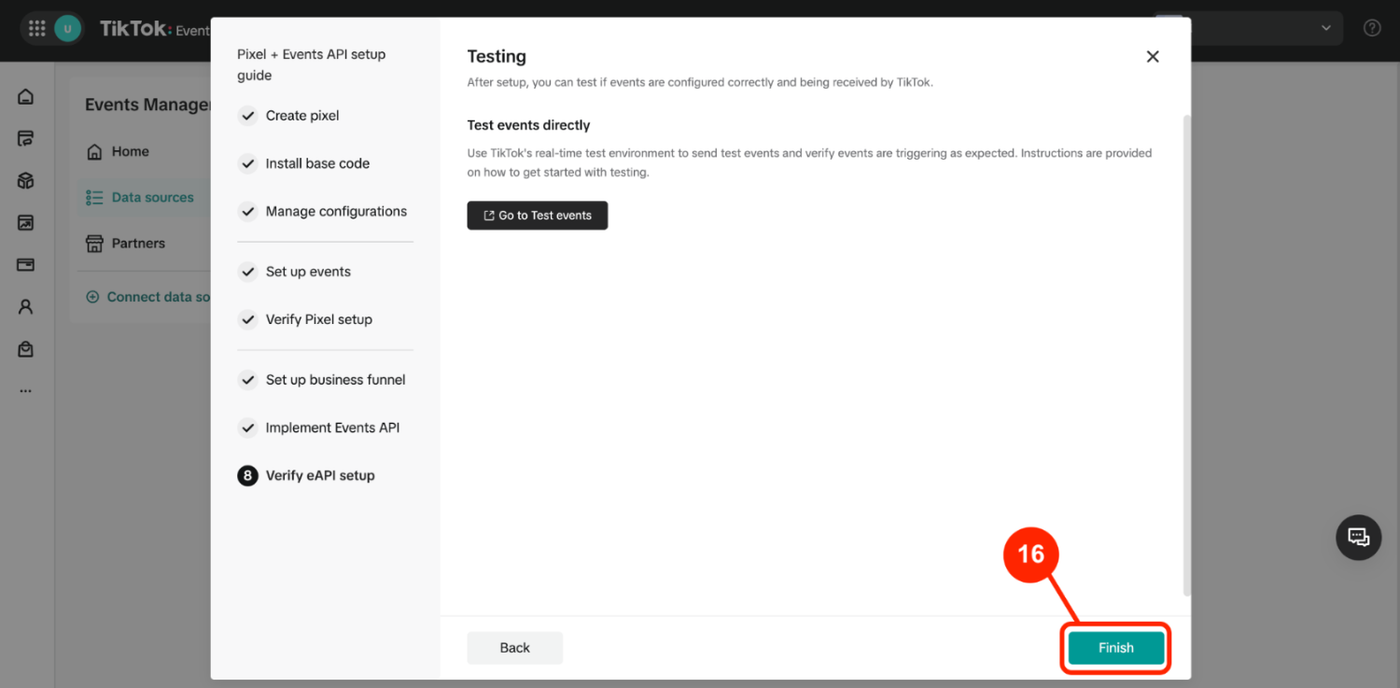
Click Finish.
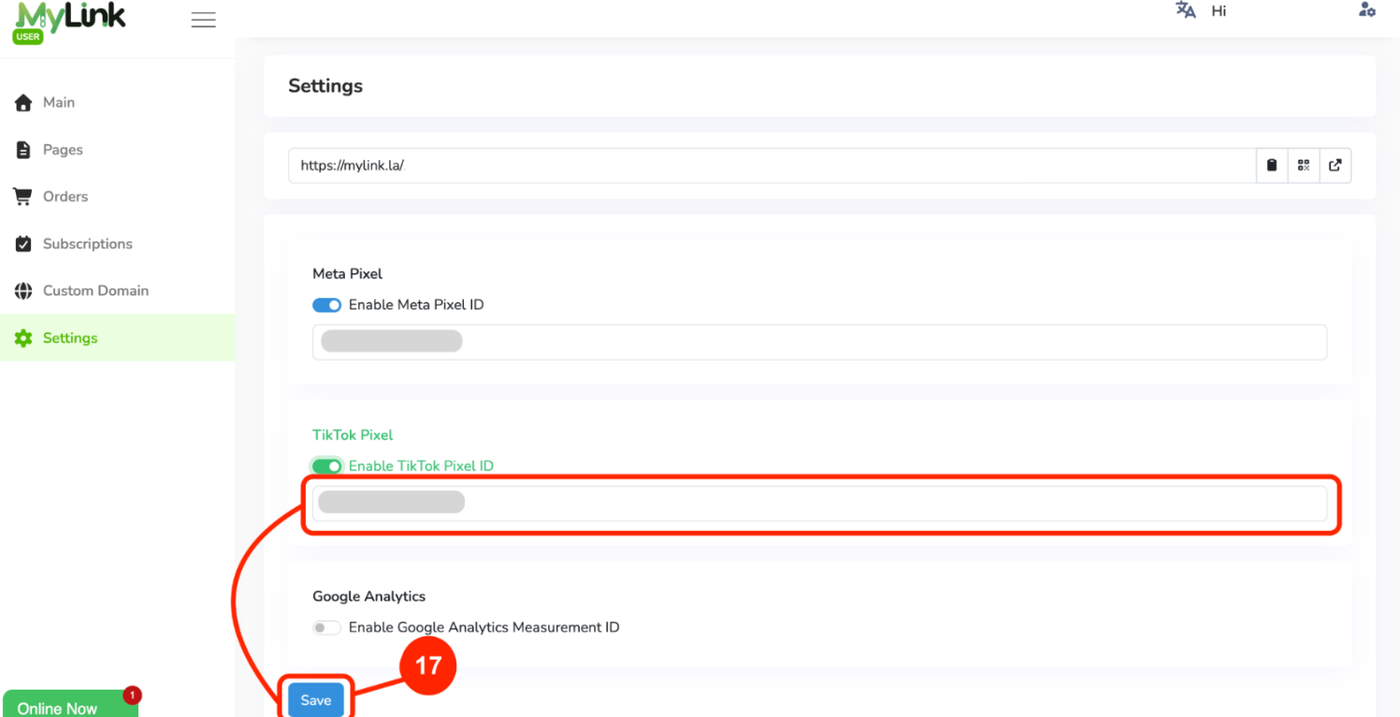
Return to MyLink, paste the Pixel ID into the TikTok Pixel field, then click Save.
You can install the TikTok Pixel Helper Chrome extension to verify and troubleshoot your pixel installation. It can help identify installation errors and provide recommendations for your website.